



Description
4DPop Macros adds macros available to the method editor. Using macro-commands saves a lot of time during method entry.
README




4DPop Macros
4DPop Macros adds a rich set of macro-commands to the 4D method editor. Using macro-commands saves a lot of time during method entry.
Once the component is loaded, the macros are installed automatically — no manual setup required — and become available directly from the code editor.
Highlights
- Declarations…: analyses the code, deduces the type — including
4D.x/cs.xclasses — of parameters and local variables, lets you review and adjust each type in an interactive dialog, and writes the declarations using the modernvarkeyword, inserted right before each variable's first use. - Beautifier…: a configurable code formatter.
- Comments: intelligent comment / uncomment (single-line, block or intra-line).
- Compiler directive…: wraps a selection with
//%W-…//%W+directives to selectively disable compiler warnings. - Special paste…: pastes clipboard content with transformations (string, comments, HTML, regex pattern, pathname, JSON-to-code, tokenized…).
- Copy and replace, Duplicate & comment, Copy with tokens and several everyday helpers.
- Most actions come with a keyboard shortcut, a predictive-input trigger, and an entry in the method editor's macro menu.
Prerequisites: component dependencies
4DPop Macros relies on the following 4D components. When installed through the Dependencies Manager (recommended), they are resolved automatically:
| Dependency | Repository |
|---|---|
| 4DPop | vdelachaux/4DPop |
| Regex with Classes | vdelachaux/Regex-with-Classes |
| UI with Classes | vdelachaux/UI-with-Classes |
Installation
Recommended (4D v21+): Project dependencies
Use the 4D Dependencies Manager UI to install the component:
- Open your project in 4D (v21+).
- Open the Dependencies Manager.
- Add a GitHub dependency.
- Enter the GitHub repository address:
vdelachaux/4DPop-Macros. - Choose the version you want (for example
latest). - Apply changes and let 4D update project dependencies.
No manual JSON editing is required, and the dependencies listed above are pulled in automatically.
Usage
When the component is loaded, the macros are automatically installed and available in the method editor. They can be invoked:
- By clicking on the Macros button in the method editor toolbar.
- By double-clicking on their name in one of the footer lists of the method editor.
- For some of them (see the "Menu" column below) in the "Method" menu or the sub-menu of the "Insert macro" item of the editor's contextual menu.
- For some, by a keyboard shortcut indicated in the "Shortcut" column below.
- For some, in the predictive input window. The triggering text is indicated in the "Input" column below.
For more information on the use and operation of macros, you can refer to the Creating and using macros page of the 4D documentation.
Here are the macros I use every day
That's why they have an associated shortcut 😉
| Name | Goal | Menu | Input | Shortcut* |
|---|---|---|---|---|
| Declarations… | Help with the declaration of parameters and local variables | ✔︎ | ⌘ $ | |
| Compiler directive… | Help to enclose selection with //%W directive | ✔︎ | ⌘ ⌥ ⇧ c | |
| Beautifier… | A code formatter | ✔︎ | ⌘ § | |
| Copy and replace | Swaps the selection with the contents of the clipboard | ✔︎ | ⌘ ⌥ c | |
| Special paste… | Paste the text contained in the clipboard by applying transformations | ✔︎ | _p | ⌘ ⌥ v |
| Comments | Intelligent comment/uncomment | ✔︎ | ⌘ j | |
| Duplicate and comment | The selected text is saved as a comment immediately before the selection. | ✔︎ | ⌘ ⌥ d | |
| Replay last macro | Replays the last macro used for the method being edited | ✔︎ | ⌘ + |
*Shortcuts may be displayed incorrectly in the macro menu because they are interpreted. e.g. ⌘ ⌥ c will be displayed ⌘ ©
Declaration…
This tool operate on the selected text of the frontmost method (or on the whole method if there is no selection*). It extract the parameters and local variables, then tries to discover their type and displays the list of elements found, allowing you to change their type. Once validated, each declaration is inserted just before the variable's first use. The declaration tool is able to parse the C_xxx directives and replace it using the var keyword.
*Not yet for a class method, so it's best to work with the selection for now.
⚠️ The declaration macro no longer supports binary databases: it targets project mode only and always writes declarations with the
varkeyword.

-
① The list displays first the parameters, then the local variables.
- For each element, an icon represents the type deduced, and the number of uses in the analyzed code is displayed on the right.
- The elements for which the type could not be determined are displayed in red.
- Items that were found in a statement instruction, but are not used, are displayed in orange. They will not be included in the created directives.
- Arrays are underlined.
-
② A relevant line of code is displayed under the list. Two radio buttons let you choose which one — and your choice is saved:
- Deduction line (default): the line that allowed the tool to deduce the type — for example the indexed access
$row[1]that reveals a Collection, or the assignment that reveals a simple type. - First occurrence: the first line where the element appears.
- The first-occurrence line is also available via the tooltip.
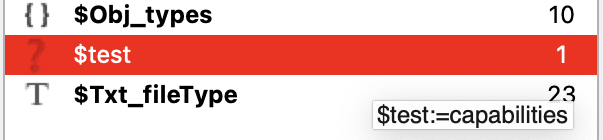
- Deduction line (default): the line that allowed the tool to deduce the type — for example the indexed access
-
③ To the right are the available types.
- The shortcut for each type is
option + the underlined letterof the label - When the type is Object, a class picker drop-down appears, listing the 4D classes (
4D.x),Object(a plain object) and thecs.x/4D.xclasses referenced in the code, so you can type the variable precisely (e.g.4D.File). A dedicated icon marks variables carrying a class.
- The shortcut for each type is
-
④ The Filter menu allows you to display only certain items.


- ⑤ If you validate, each declaration is inserted just before the variable's first use (named parameters are grouped at the top). When a variable's first use is its own assignment, the declaration and the assignment are merged on a single line (
var $x : Text:=…). Variables of the same type inserted at the same place are grouped on onevarline. Untyped or unused variables are ignored, and declarations made throughout the method, as well as all previous declarative blocks, are removed.- If you close the window with the close box, the method is not changed.
Arrays:
📍Since declaration and sizing use the same command, you can force the position of the command by using hexadecimal notation (or a variable) for the size, i.e.:
ARRAY LONGINT($array; 0x0000)
ARRAY TEXT($array; $size)
📍Two-dimensional arrays are not yet supported
👀 How the tool determine the item type?
- If a variable or a parameter is already declared (with var, C_xxx or #DECLARE). It is obvious ;-)
- If no declaration line was found, the tools try to deduce the type by analyzing the code.
- First by detecting simple patterns: for example,
$x:=10gives the type Integer to $x,$o.key:=10gives the type Object to $o. - Then, using the 4D command syntax:
$x:=Count parametersgives the type Integer to $x,Is picture file ($pathname)gives the type Text to $pathname. - And finally, if the type has still not been found using the nomenclature that you can define in the preferences.
- First by detecting simple patterns: for example,
- You can always force a type by selecting the one you want using the radio buttons on the right.
Copy and replace
This macro is often useful even if the explanation of its operation seems complex. The usage scenario is as follows:
You type some code referring to a calculated expression and then you realize that you need this expression again later on and decide to put the expression in an intermediate variable. In this case you type $maVariable:=MyExpression and then replace MyExpression with $maVariable.
With the macro:
- First type
$maVariableand copy this text. - Then, select
MyExpressionand call the macro: The text "MyExpression" is placed in the clipboard and replaced by the text "$maVariable". - Then, you position the cursor after the first occurence of
$myVariableand type:=then paste the content of the clipboard to obtain$myVariable:=MyExpression.
Beautifier
This tool formats the selected text, or the whole method if there is no selection, by applying the rules you have defined in the preferences.
Special paste
The tool displays a dialog allowing to choose what will be pasted in the method editor. The "Result" area allows you to preview the text as it will be pasted.

The available transformations are :
- String: The text is pasted between quotation marks, the special characters (\r, \n, \t and ") are escaped .
- Comments: Each line is preceded by a comment mark, the text is not modified.
- HTML: The html code contained in the clipboard is assigned to a local variable. The characters are escaped.
- Regex Pattern: The text is pasted between quotation marks. The special characters of the pattern are escaped to be used as such taking into account that the backslash must be escaped in 4D.
- Pathname: Pastes the path name of a file or folder copied to disk. You can choose the POSIX format instead of the system and choose to use a path relative to the project folder if relevant.
- Insert in text: Allows you to insert an expression into a string by surrounding the clipboard content with
"+and+". The text thus created replaces the text selected in the string or is inserted at the cursor position. - JSON code: Transforms a JSON text into code to create a 4D object
- Tokenized: Paste code with tokens
Compiler directive…
When the compiler displays warnings to draw your attention to instructions that could lead to runtime errors, you can, after analysis, selectively disable some of them during compilation.
To do this, select the line(s) of code in the method editor that cause this warning and select the "Compiler directive…" action from the macro menu. The tool asks for the number displayed in brackets (e.g. 538.3) and when you validate, surrounds the selected code with the pattern //%W-538.3 ... //%W+538.3.

Comments
If the selected text is already commented, it is uncommented. Otherwise, the macro analyzes the selected text to choose the best commenting method:
- single-line comment:
// CLOSE DOCUMENT($Doc_shortcuts)- block comment:
/*
	APPEND TO ARRAY($tTxt_attributeName; "editable")
	APPEND TO ARRAY($tTxt_attributeValue; "false")
*/- intra-line
ON ERR CALL(/*"noERROR"*/"")Duplicate & comment
I use it when I want to preserve a piece of code before editing it, but an image is better than text ;-)

Copy with tokens
As the name suggests, the selected code is copied with the tokens.
Replay last macro
Others available macros
| Name | Goal | Menu | Input | Shortcut* |
|---|---|---|---|---|
| Macro test | Call the project method 4DPop_TEST_Macros of your database. Be sure to share the method. |
✔︎ | ⌘ 0 | |
| Constant value… | Evaluates the selected 4D constant and displays its value. | ✔︎ | ||
| Make an archive | Zips the current project to share it. | ✔︎ | ||
| New method… | Creates a new method containing the selected text and replaces the selection with the method name. | ✔︎ | _method | |
| Method attributes… | Displays a pop-up menu to toggle the attributes of the current method. | ✔︎ | _attributes | |
| Paste a color | Displays the system color palette and pastes the value of the selected color. | ✔︎ | _c | |
| Find with Google | Launch a Google search, in the default browser, with the selected text. | ✔︎ | ||
| Remove blank lines | As the name suggests. | ✔︎ | ⌘ * | |
| Conditional assertion | Wraps the selected expression in an Asserted(…) conditional assertion. |
✔︎ | ⌘ æ | |
| Convert to call with token | Replaces a quoted method name with a tokenized call. | ✔︎ | ||
| Dot notation | Rewrites legacy OB GET / OB SET / OB Is defined into dot (or bracket) notation. |
✔︎ | ||
| Choose | Converts an If … Else … End if assignment into a Choose expression. |
✔︎ | ||
| EXECUTE METHOD | Rewrites direct project-method calls in the selection as EXECUTE METHOD calls. |
✔︎ | ||
| EXECUTE FORMULA | Rewrites method/command calls in the selection using EXECUTE FORMULA. |
✔︎ | ||
| Convert to Hexa | Converts the selected number to hexadecimal. | ✔︎ | ||
| Convert to decimal | Converts the selected hexadecimal value to decimal. | ✔︎ | ||
| Invert expression | Inverts the selected expressions line by line (swapping paired commands and assignments). | ✔︎ |
Macro test
🚧
Preferences
🚧
Declaration preferences

Beautifier preferences

Source code
The component is distributed in compiled form, with source code available in the Sources folder inside the component.